Sending the document by email from the dashboard
How to email a document to your client from Okeh, with your business name and your message, and replies that come back to your inbox.
On this pageWhich address it comes from
Your client gets an email with your logo, your message and a button to open the document. If they reply, the reply comes to you.
- Open the document. If it's a draft, press Pubblica (Publish) first.
- Press Invia (Send) at the top, or open the Invia tab.
- In the Invia per email (Send by email) box, fill in Email del cliente (Client's email) and, if you like, Nome (Name).
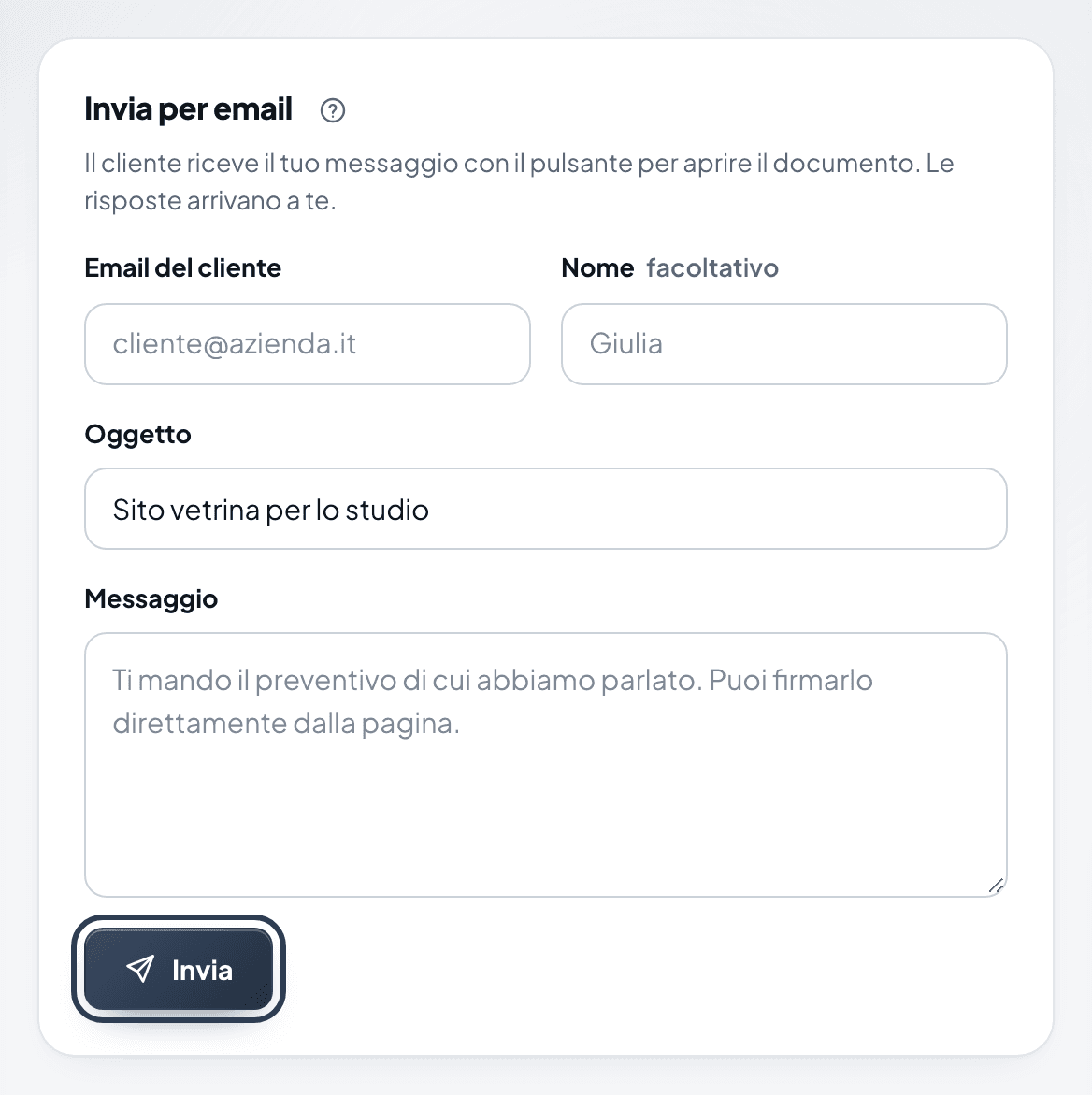
The Invia per email (Send by email) box with the client's email, name, subject and message fields - Check the Oggetto (Subject): by default it's the document title.
- Write the Messaggio (Message). It's the text your client reads above the button.
- Press Invia.
Note
Sending the document from the Invia tab records the recipient. This is needed for the reminder before expiry.
Which address it comes from
On the Free and Base plans, the email is sent from the service's address, with your business name as the sender. Replies go to the address you set in Impostazioni (Settings), Email tab, Le risposte arrivano a (Replies go to) field. With Pro you can send from your own mailbox: see Sending from your own mailbox.
A copy for you
In the same tab, under Copia nascosta (Bcc), enter an address that receives a copy of every email sent to your clients. It's useful as an archive.
Note
To prevent abuse, each account can send at most 40 emails an hour.