Getting started: from sign-up to your first signed document
How to sign up to Okeh, open the dashboard, try signing with the sample document, create your first quote and send it to a client.
On this pageSign up
This guide takes you from sign-up to your first signed document. It takes about twenty minutes, plus the time needed to approve your account.
1. Sign up
- Open the sign-up page. Okeh is for businesses based in Italy, with an Italian VAT number (partita IVA). Outside Italy? Join the waiting list and we'll write to you when it opens.
- Enter the name of your business. This is the name your clients see in emails and documents.
- Choose your address, for example
studiorossi.okeh.app. We suggest a few short versions of your name, and you can change it later. - Enter your email and password, accept the terms and press the button.
- You get a 6-digit code by email. Enter it on the page to confirm your address.
2. Wait for approval
Every new account is checked by hand before it is activated, to keep scam pages away. When your account is active, you get a welcome email with the link to your dashboard.
The 14-day trial starts that day, with all the Pro features. No card needed. If you don't choose a plan at the end, you move to the Free plan and your documents stay online.
3. Open the dashboard
- Open
yourname.okeh.app/login, or use the link in the welcome email. - Log in with your email and password, or press Ricevi un link via email (Get a link by email) to log in without a password.
- If you can't remember your address, go to Log in and enter your email: we'll send you the links to your accounts.
- If you can't remember your password, press Password dimenticata? (Forgot password?).
4. Try signing with the sample document
Your dashboard already has a sample document with your name. It lets you see signing from the client's side before you use it with a client.
- In Overview, press Apri l'esempio (Open the example). You also find it in Documenti (Documents), with the Esempio (Example) label.
- Open the Invia (Send) tab, enter your own email in Email del cliente (Client's email) and press Invia.
- Open the email you receive, open the document and scroll to the bottom.
- Press Firma il documento (Sign the document), choose an option, then enter your email and the code you receive.
- You get the receipt with the PDF certificate. In the dashboard, the document shows as Firmato (Signed).
5. Create your first document
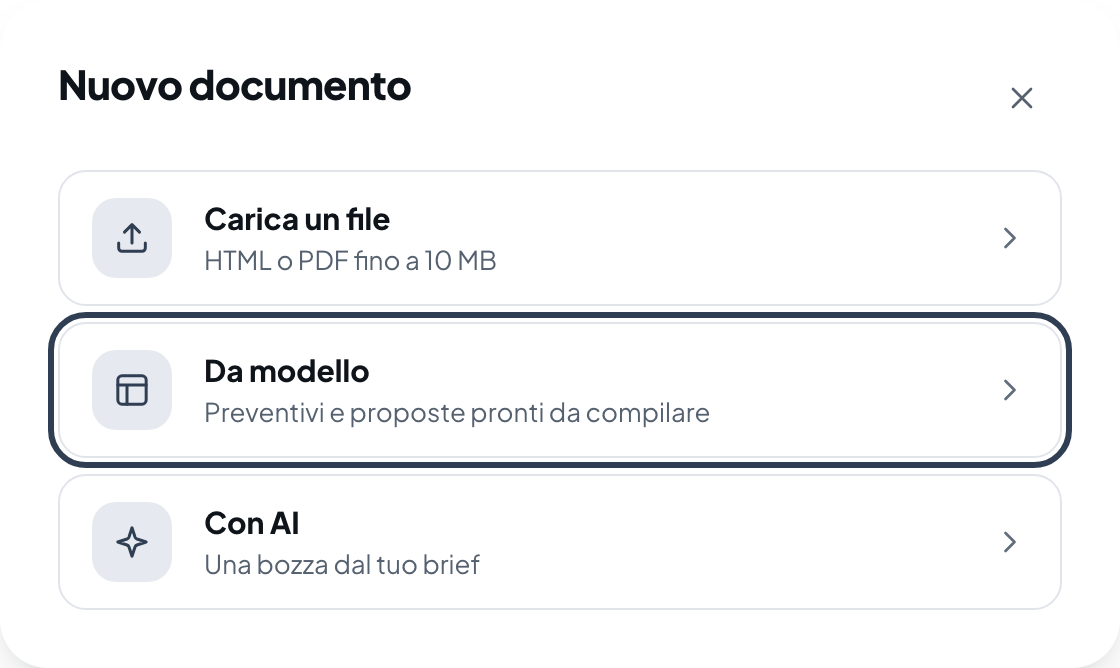
- Press Nuovo documento (New document) at the top of the sidebar and choose where to start.
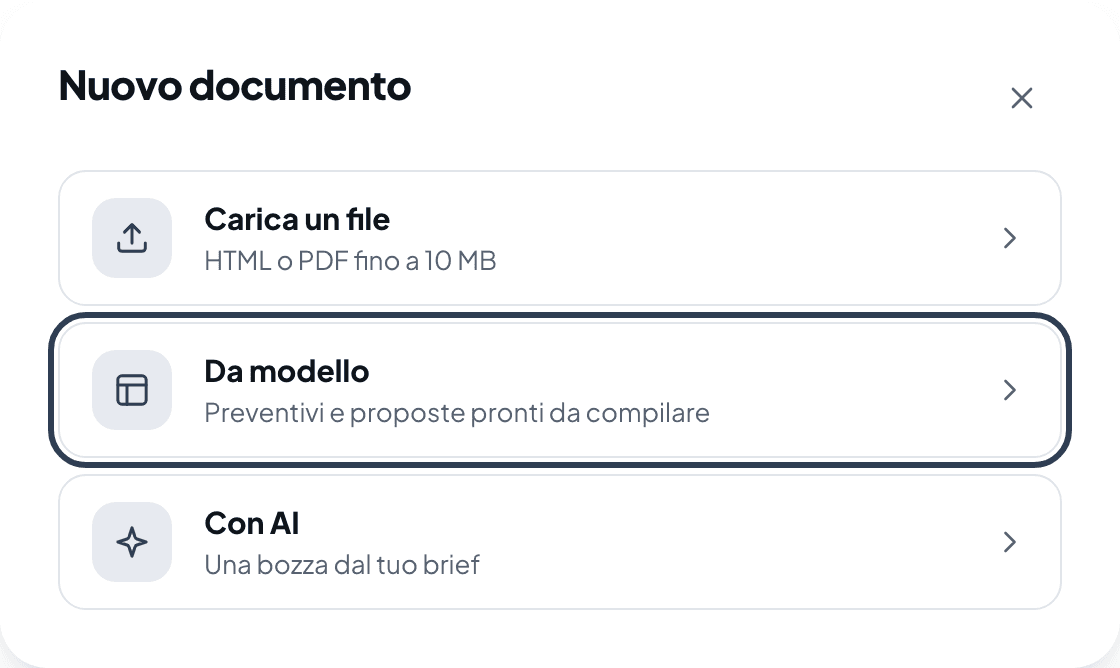
The Nuovo documento (New document) window with three options: Carica un file (Upload a file), Da modello (From template) and Con AI (With AI) - Da modello (From template): a laid-out quote to fill in. See Creating a quote from a template.
- Con AI (With AI): a draft written by the AI from a few lines, on the Base and Pro plans. See Writing a quote with AI.
- Carica un file (Upload a file): the PDF you've already made with Word, Pages or Canva. See Uploading a PDF.
6. Send it to your client
Publish the document, then send it from the document's Invia tab, or copy the link and paste it into WhatsApp. When your client opens it, you get an email. When they sign, you get a notification with the certificate. See Sending the document by email.
Note
Your own opens don't count: when you're logged in to the dashboard, your visits are left out of the statistics.