Your business logo, colour and name
How to set the logo, colour, name and legal details that appear in your Okeh documents, in emails to clients and in the signature certificate.
On this pageThe quickest way
Your logo, colour and name appear in documents created from a template or with AI, in emails to clients, on the signing button and in the certificate.
The quickest way
In Overview, Il tuo brand (Your brand) box, enter your website in Hai un sito? (Have a website?) and press Prendi logo e colore (Get logo and colour), or Carica il logo (Upload the logo). Choose the colour, look at the Prima (Before) and Dopo (After) preview and press Usa questo brand (Use this brand).
From the settings
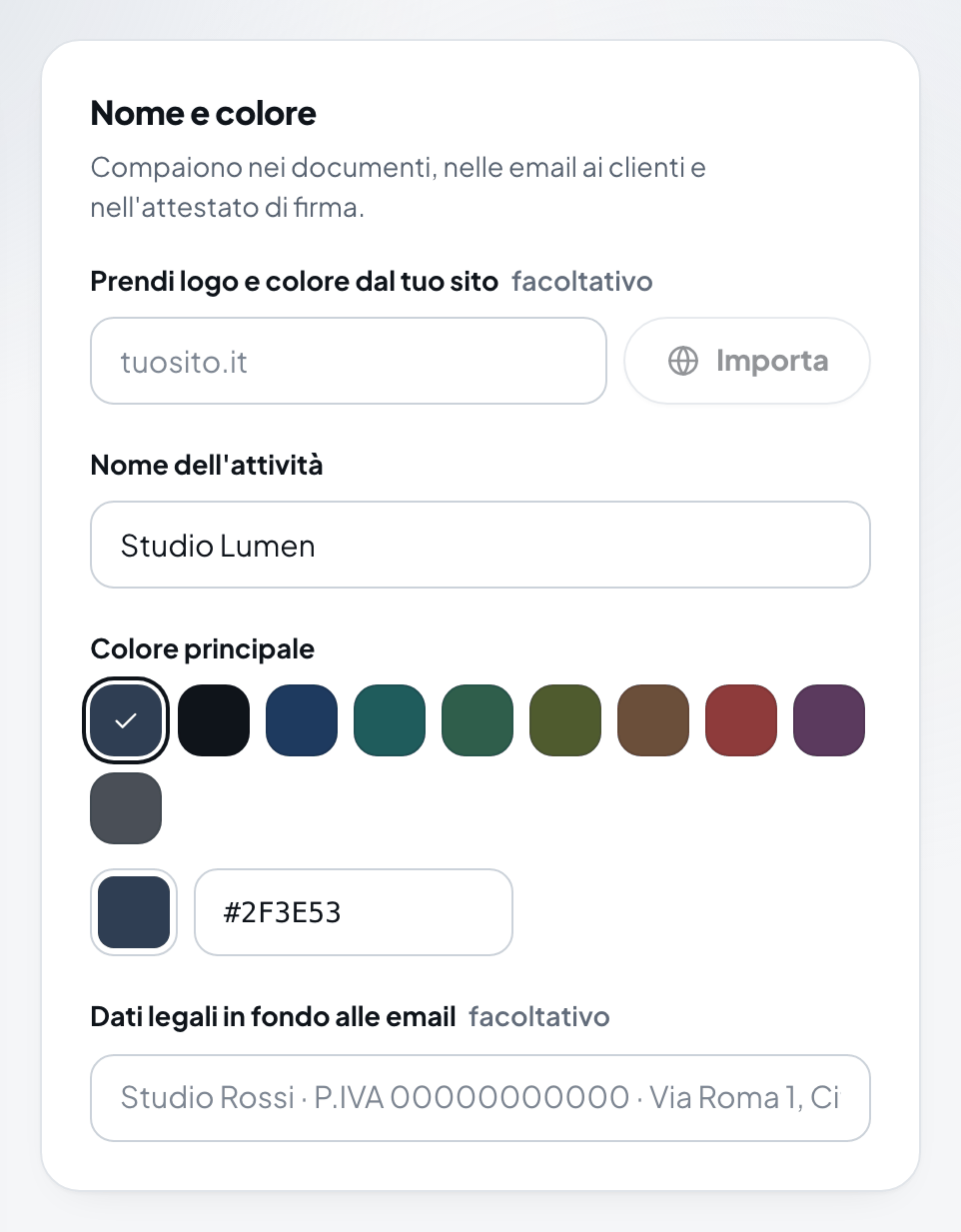
- Open Impostazioni (Settings), Marchio (Brand) tab. In the Nome e colore (Name and colour) box you can import your logo and colour from your website with Importa (Import).
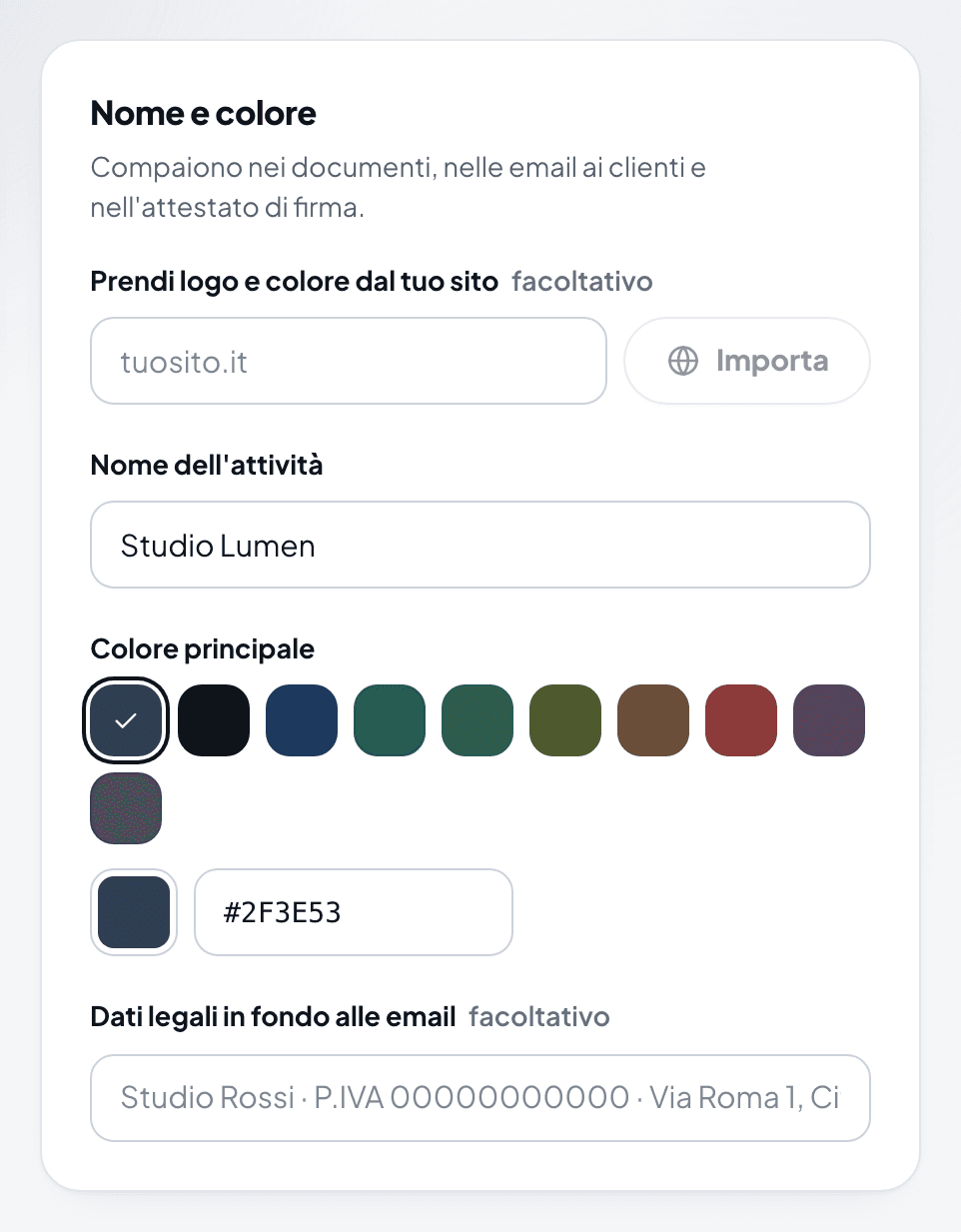
The Nome e colore (Name and colour) box in the Marchio (Brand) tab of the settings - Write the Nome dell'attività (Business name) the way you want clients to read it.
- Choose the Colore principale (Main colour). It's used for buttons and details: pick a dark one, because the text on top of it is white.
- If you like, fill in the Dati legali in fondo alle email (Legal details at the bottom of emails), for example company name and VAT number.
- In the Loghi (Logos) box, upload the Logo (for light backgrounds) and the Logo per sfondi scuri (Logo for dark backgrounds: white, for emails in dark mode). You can add the Icona del sito (Site icon).
- Press Salva il marchio (Save the brand).
Note
Documents you've already created stay as they are. Drafts created from a template and never edited update with the new brand.
Tips for the logo
- PNG with a transparent background, at least 120 pixels high. JPG or WebP also work, up to 1 MB.
- A horizontal logo reads better than a square one.
- If you only have a black logo, ask whoever designed it for the white version: without it, your logo can disappear in emails in dark mode.
Was this helpful?