Signing: what your client sees
Signing from the client's side: the button at the end of the document, the email, the 6-digit code, the confirmation and the receipt with the PDF certificate.
On this pageThe code
Your client doesn't install anything or create an account. All they need is the link and their email. You can try the process yourself in the demo.
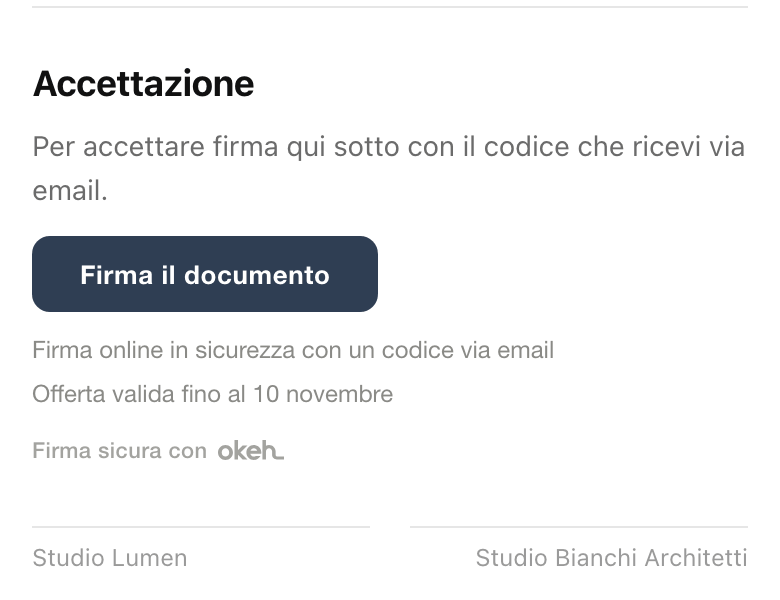
- They open the link and read the document. At the bottom, or wherever you've placed it, they find the Firma il documento (Sign the document) button.
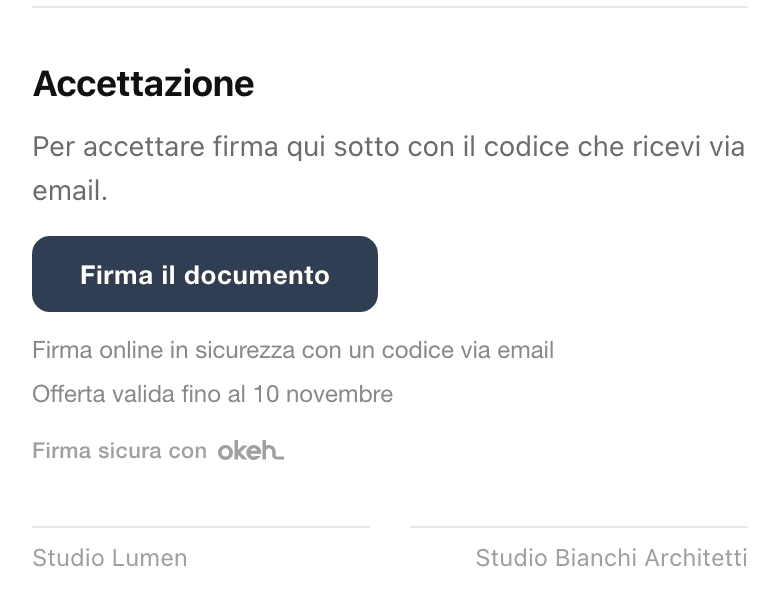
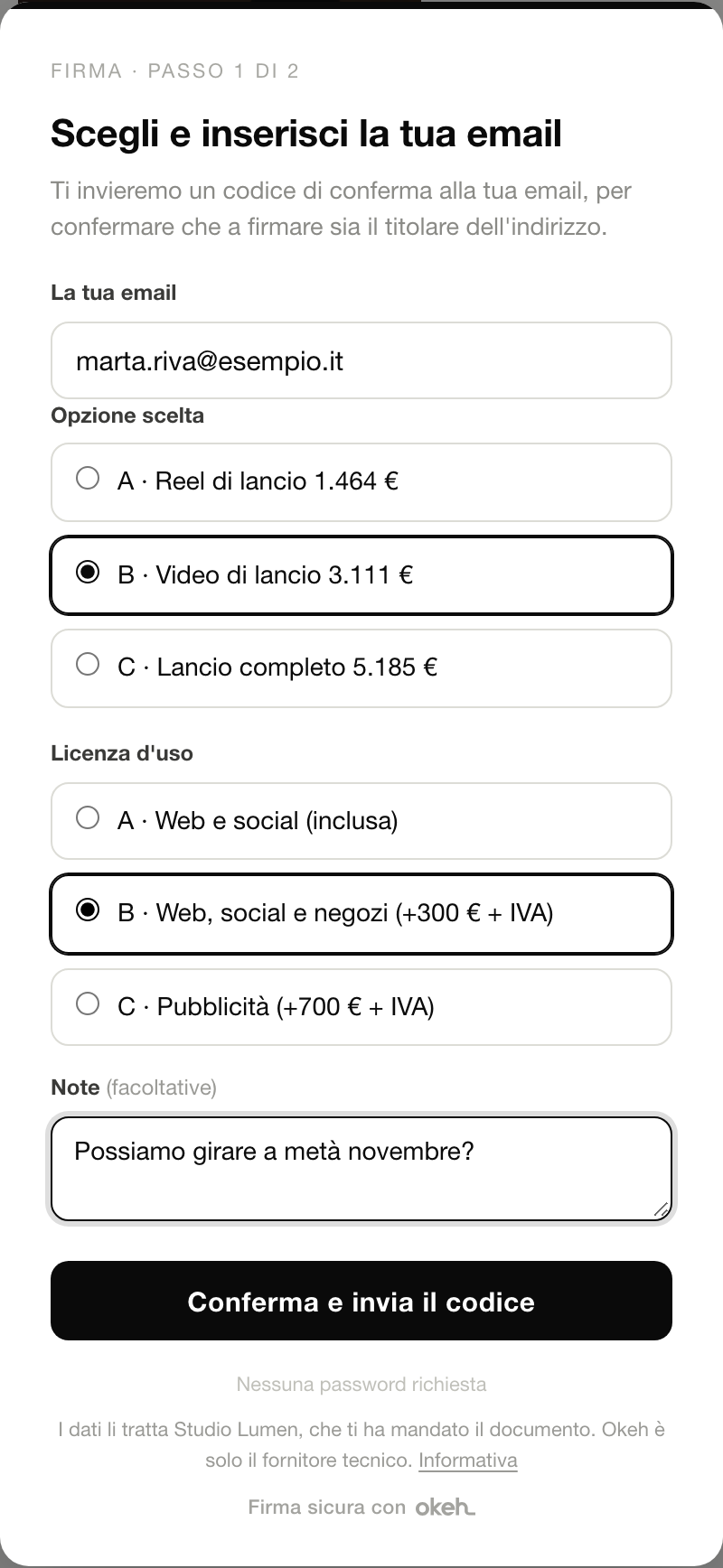
The Firma il documento (Sign the document) button at the bottom of the quote, on a phone - If the document has choices, they pick an answer for each one. They can add a note. Then they enter their email and press Invia il codice (Send the code).
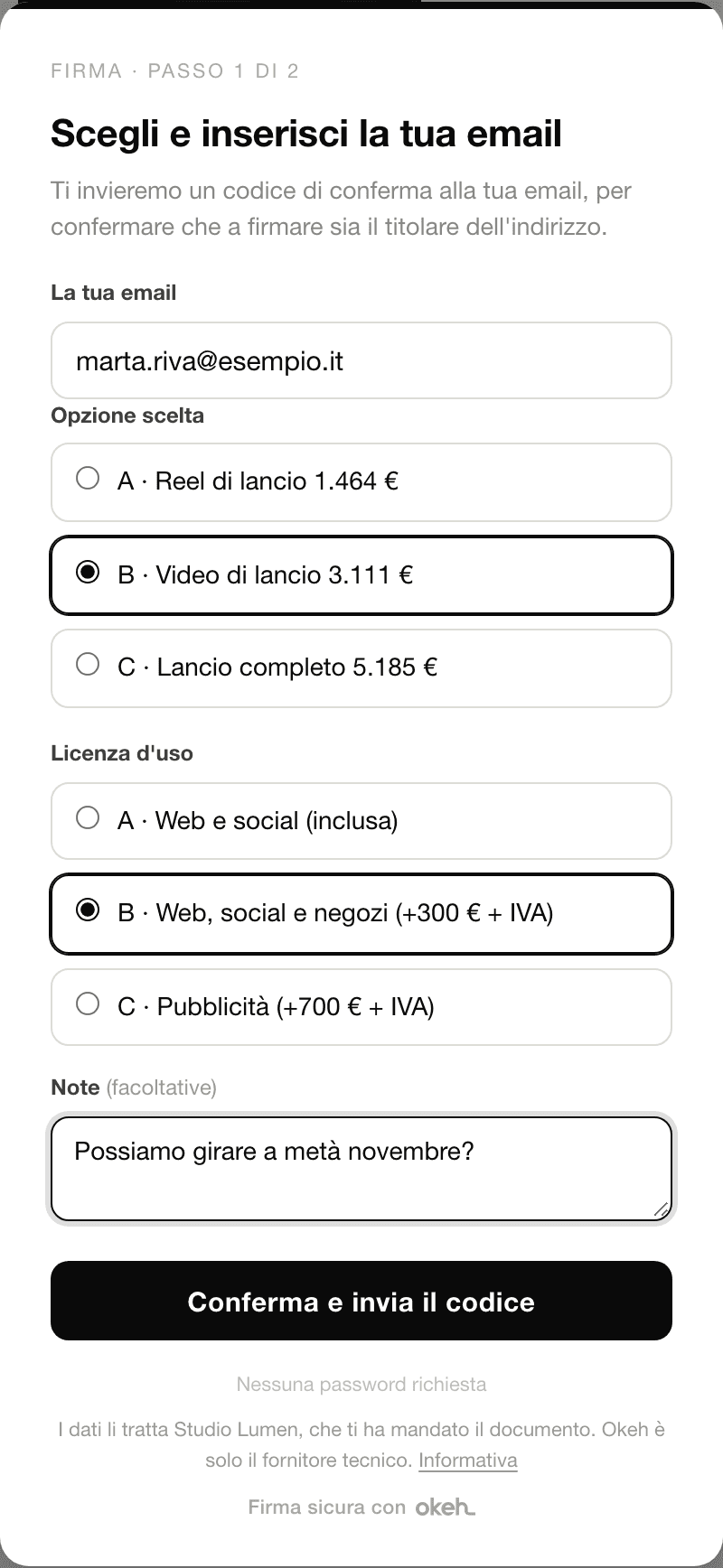
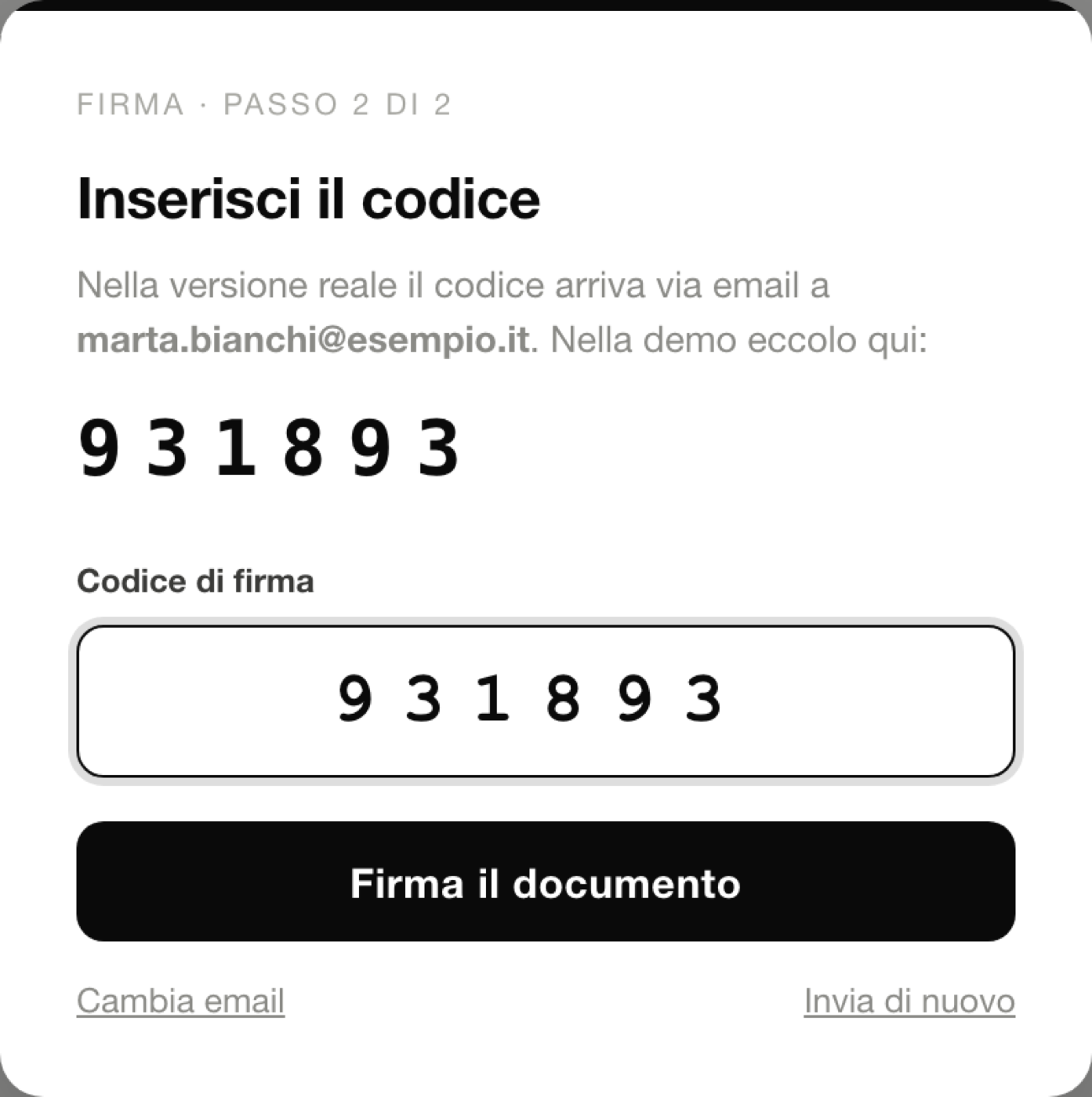
The signing window: email and choices - They get an email with a 6-digit code and enter it on the page.
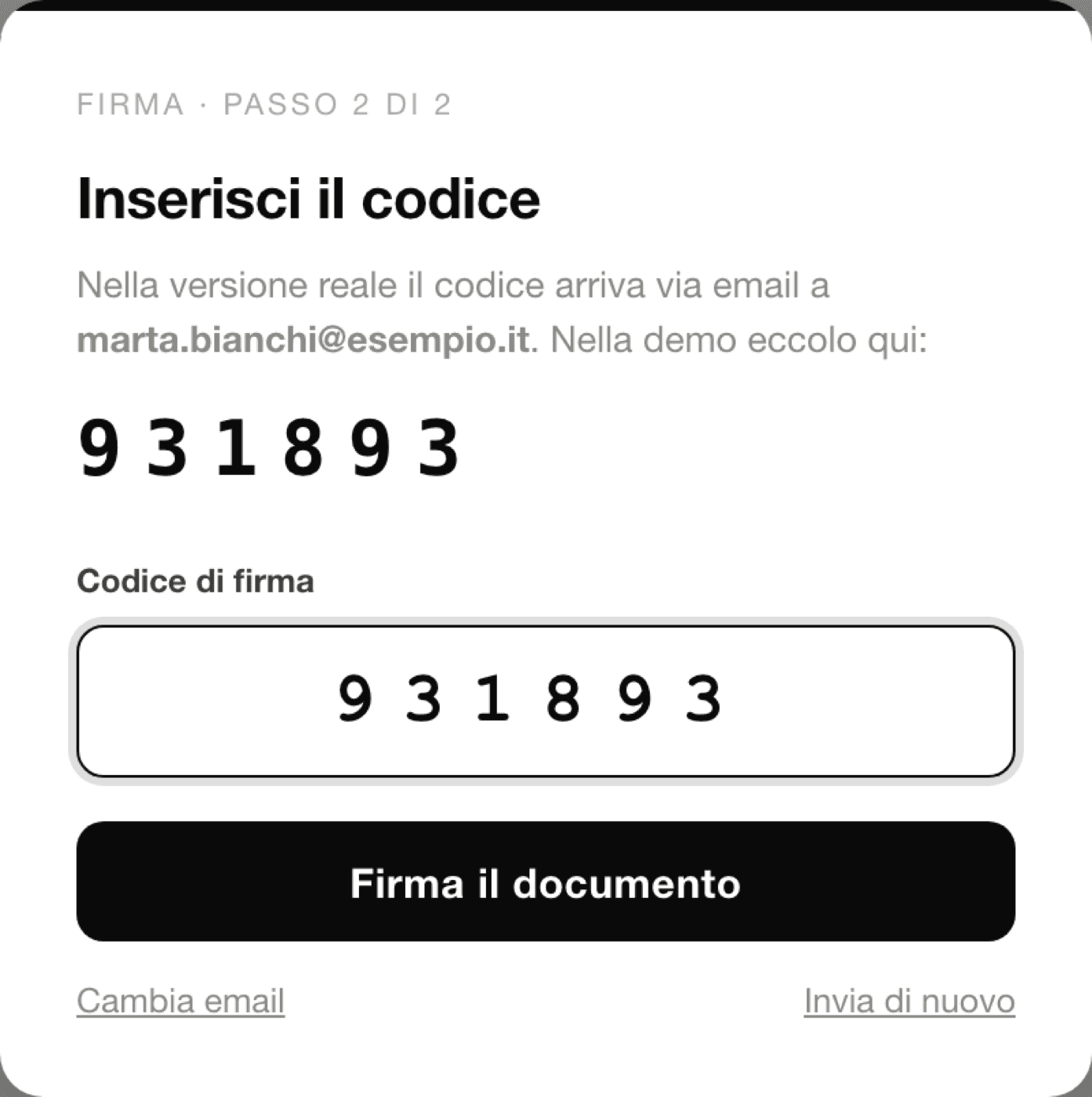
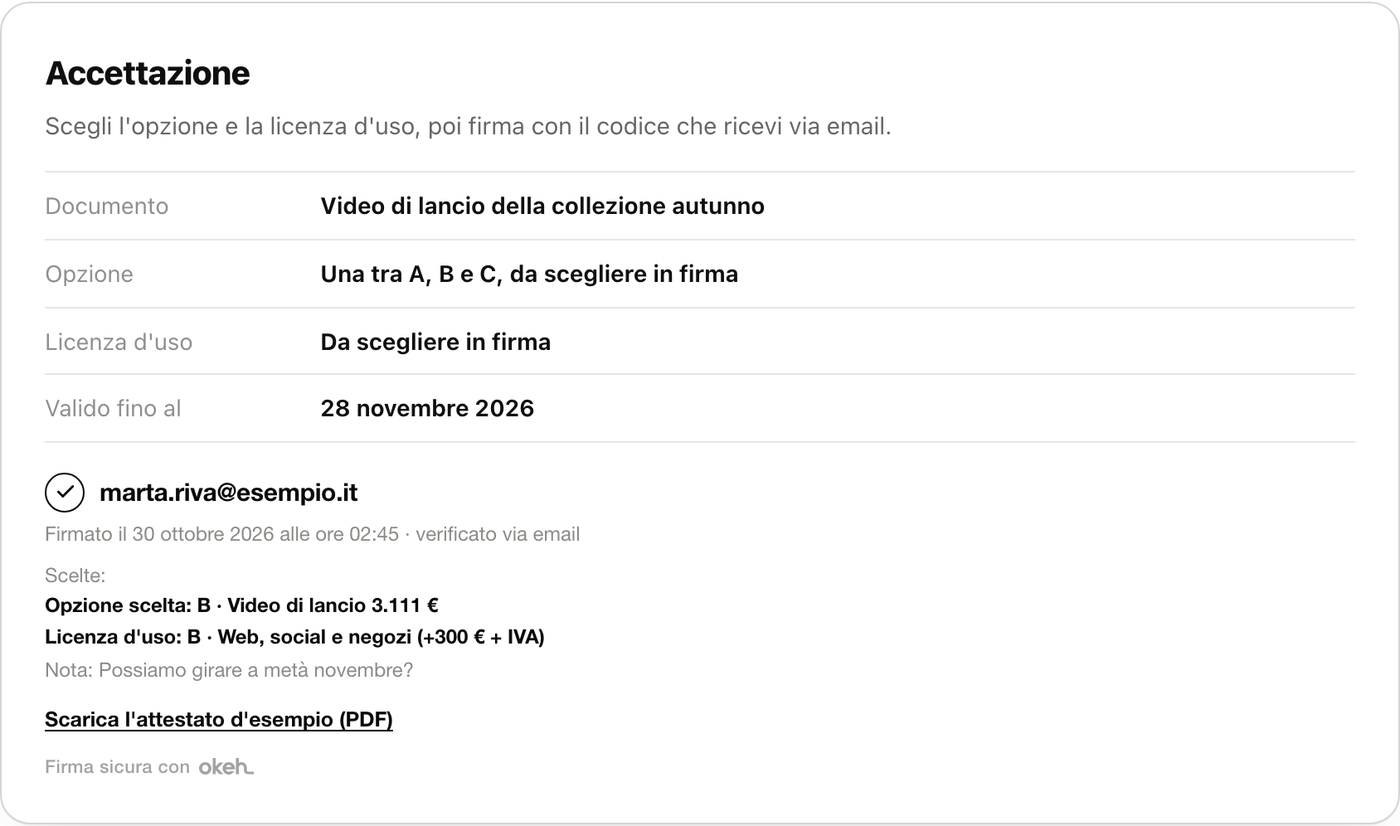
The 6-digit code step - The signature is recorded. Their name, the date and the link to download the certificate appear at the bottom of the document.
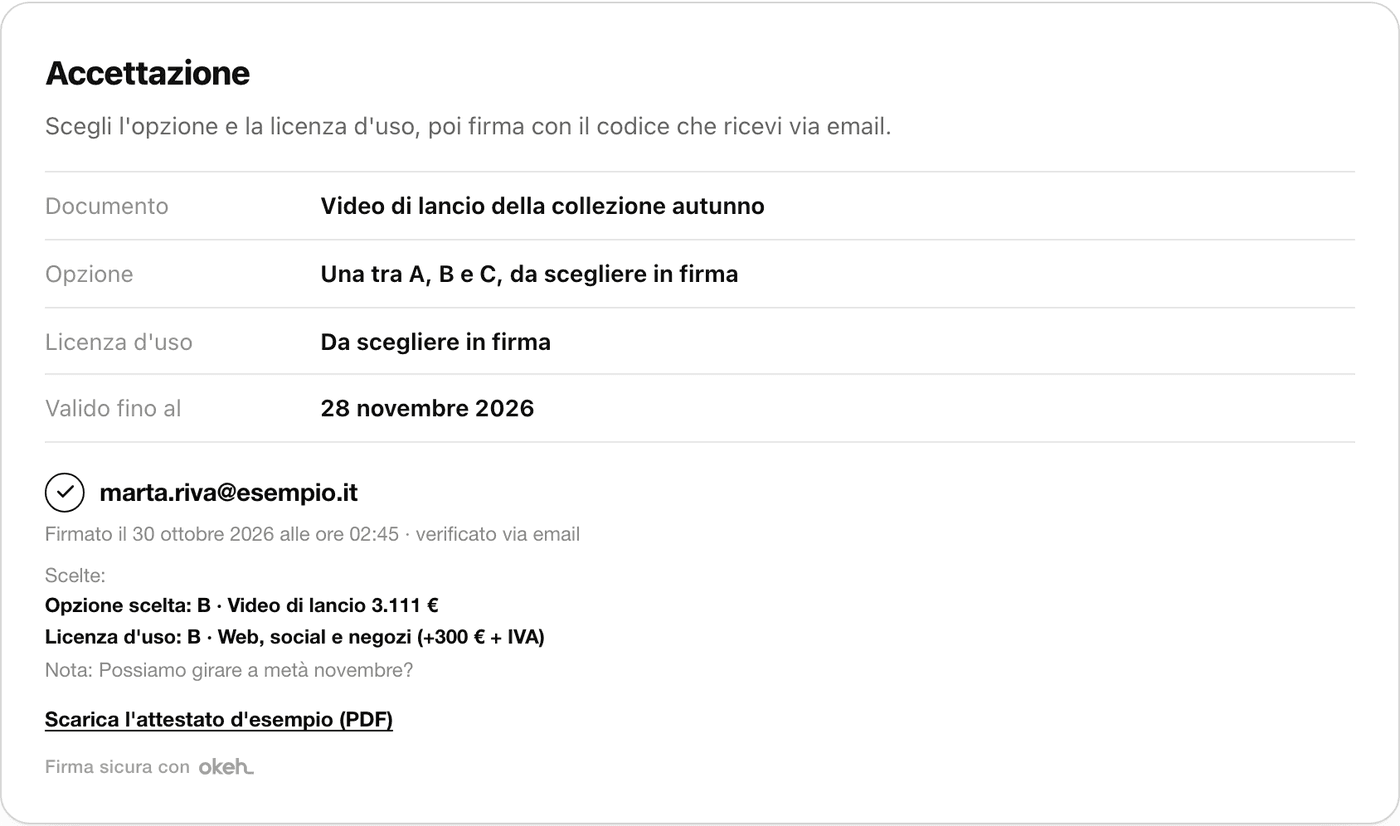
The completed signature at the bottom of the document
The code
- It's valid for 10 minutes.
- It can be entered wrongly up to 5 times, then a new code is needed.
- A new one can be requested after a minute. Up to 6 codes can be sent for each document.
- If it doesn't arrive, it's worth checking the spam folder.
After signing
- Your client gets a receipt by email with the PDF certificate attached.
- You get a notification with who signed, when, their choices and the note.
- In the dashboard the document shows as Firmato (Signed), and in the Firma (Signature) box you see Firmato da (Signed by), Quando (When), Scelta (Choice) and Nota (Note).
Warning
A signed document can no longer be changed. If it needs changing, you have to press Azzera la firma (Reset the signature): the old signature is no longer valid and your client has to sign again.
Open signing or a specific email
By default signing is open: whoever has the link signs, with their own email. You can lock it to your client's email by setting the recipient with Claude. In that case the code is sent only to that address.
Our brand mark at signing
On the Free and Base plans, the line "Firma sicura con Okeh" (Secure signing with Okeh) appears under the button. On Pro it doesn't.